

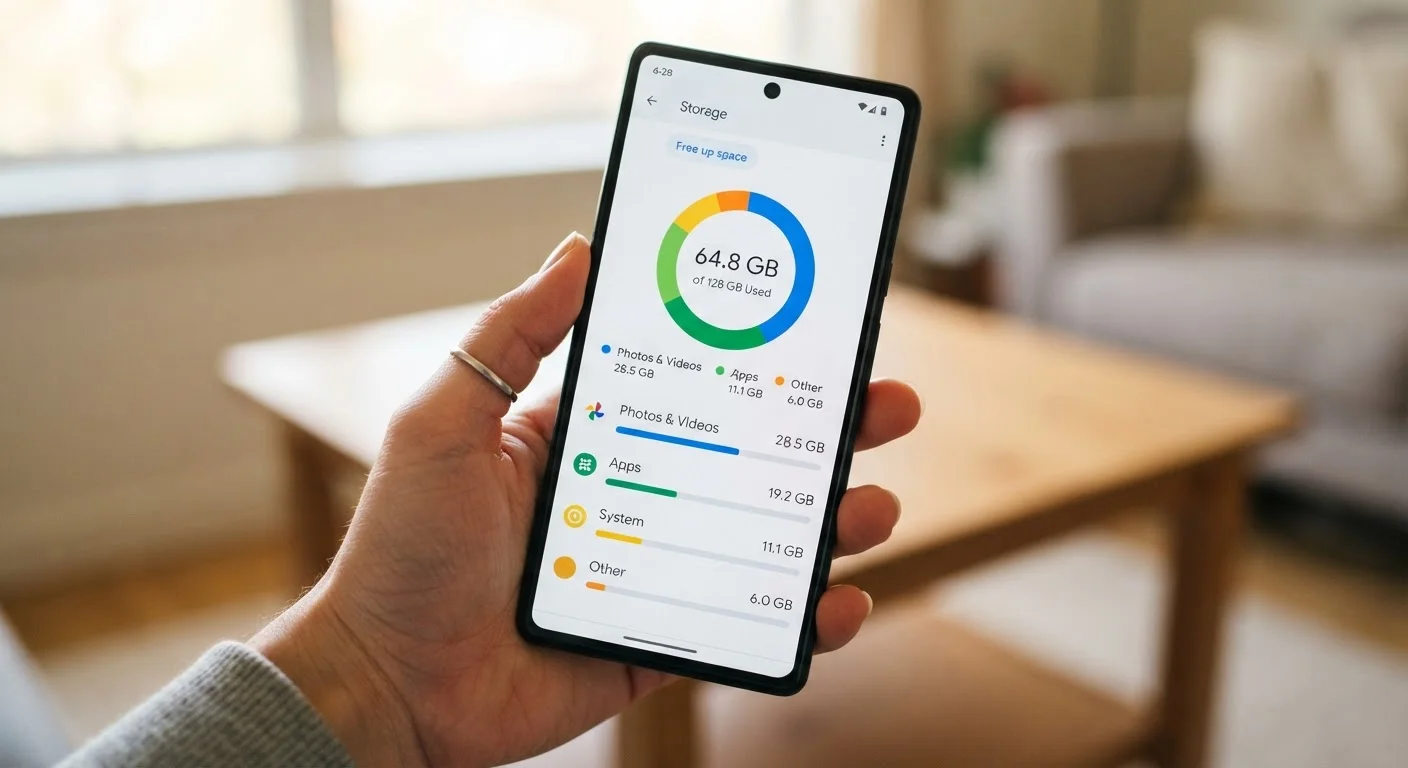
Key Takeaways
- Photos and videos are almost always the biggest storage drain on any phone.
- Apps store hidden 'cache' files that grow over time and can safely be cleared.
- Your phone's operating system reserves a portion of storage you can never use for personal files.
- Cloud backup lets you free up local storage without permanently deleting your content.
- Regularly reviewing storage in Settings helps you stay ahead of the 'Storage Full' warning.
Device Storage
Device storage is the built-in space your smartphone uses to hold everything on it — your apps, photos, videos, messages, and the operating system itself. Think of it like a filing cabinet inside your phone: once it's full, nothing new can fit in. Most phones show you a breakdown of what's using that space in the Settings app.
Storage is measured in gigabytes (GB). Modern smartphones typically range from 64 GB to 512 GB of internal storage, though the actual usable space is always less than the advertised figure because the operating system occupies a portion at all times.
Why 'Storage Full' Feels Like It Comes Out of Nowhere
You haven't downloaded anything new in weeks, yet your phone is suddenly warning you that storage is almost full. This is one of the most common frustrations smartphone users face — and it makes a lot more sense once you understand how your phone actually uses its space.
Your phone's storage isn't just for things you intentionally save. Every app you run, every website you visit, every video you stream leaves behind data. Some of it is useful; some of it is just digital clutter that piles up quietly over time. The good news is that once you know what each category means, you can make smart decisions about what to keep and what to clear.
64%
Of smartphone users who have run out of storage
According to research by Western Digital, roughly two-thirds of smartphone users have experienced running out of storage at some point.
~5 GB
Average space consumed by the iOS operating system alone
Apple's iOS typically reserves around 5–8 GB of a device's total storage for the operating system and core system data, unavailable to the user.
The Main Categories That Eat Your Storage
Your phone's Settings app organizes storage into categories. Here's what each one actually contains:
- Photos & Videos: This is almost always the largest category. Every photo you take, screenshot you save, and video you record lives here — and modern smartphone cameras produce large, high-quality files. A single minute of 4K video can take up several hundred megabytes.
- Apps: This covers the apps themselves plus any data they store locally, such as downloaded music, offline maps, or in-app content. A navigation app with offline maps or a streaming app with downloaded episodes can quietly consume several gigabytes.
- Cached Data: This is temporary data apps save to speed up future loading. Your browser stores previews of websites; social media apps store images from your feed. Cache is useful but can balloon over time.
- System & Other: Your phone's operating system — iOS or Android — permanently occupies a portion of your storage. This space is not available to you and explains why a "64 GB" phone never actually shows 64 GB of usable space.
- Messages: Text threads, especially those with lots of photos, GIFs, and videos, accumulate more storage than most people expect.
Clear App Cache Without Uninstalling
On Android, go to Settings > Apps, select the app, then tap 'Clear Cache.' On iPhone, you can offload an app under Settings > General > iPhone Storage, which removes the app but keeps its data — reinstalling it brings the app back without losing your progress or settings. This is a low-risk way to recover space quickly.
The Role of Cloud Storage and Local Files
A common misconception is that turning on cloud backup automatically frees up your phone. Backing up your photos to a service like Google Photos or iCloud copies them to a remote server — but the originals stay on your device until you actively remove them.
To actually reclaim space, you need to delete local copies after confirming they're safely backed up. Many cloud services offer an option called something like "Free Up Space" or "Optimize Storage" that removes full-resolution local copies while keeping smaller previews on your device. This is one of the most effective ways to free significant storage without losing anything.
If the concept of cloud storage feels unfamiliar, our guide to cloud storage walks through exactly how it works and what it means for your files.
Backing Up Before You Delete
Before clearing photos or messages, always confirm your backup is complete and up to date. On iPhone, check Settings > [Your Name] > iCloud > iCloud Backup to see the last backup date. On Android, look under Settings > Google > Backup. Deleting local content before verifying the backup could result in permanent loss.
How to Take Stock of What's Actually There
The most empowering step is simply opening your storage breakdown and reading it. On an iPhone, go to Settings > General > iPhone Storage. On Android, go to Settings > Storage. Both views list apps by how much space they use, with the heaviest offenders at the top.
Look for a few things in particular:
- Any app using more than 1–2 GB that you rarely open — this is prime candidate for deletion or cache clearing.
- A "Messages" or "Other" category that seems disproportionately large.
- Duplicate photos or old screenshots you no longer need.
If you're in the process of switching phones, our guide to setting up a new phone includes steps for transferring only what you actually want to keep — a natural opportunity to declutter.