

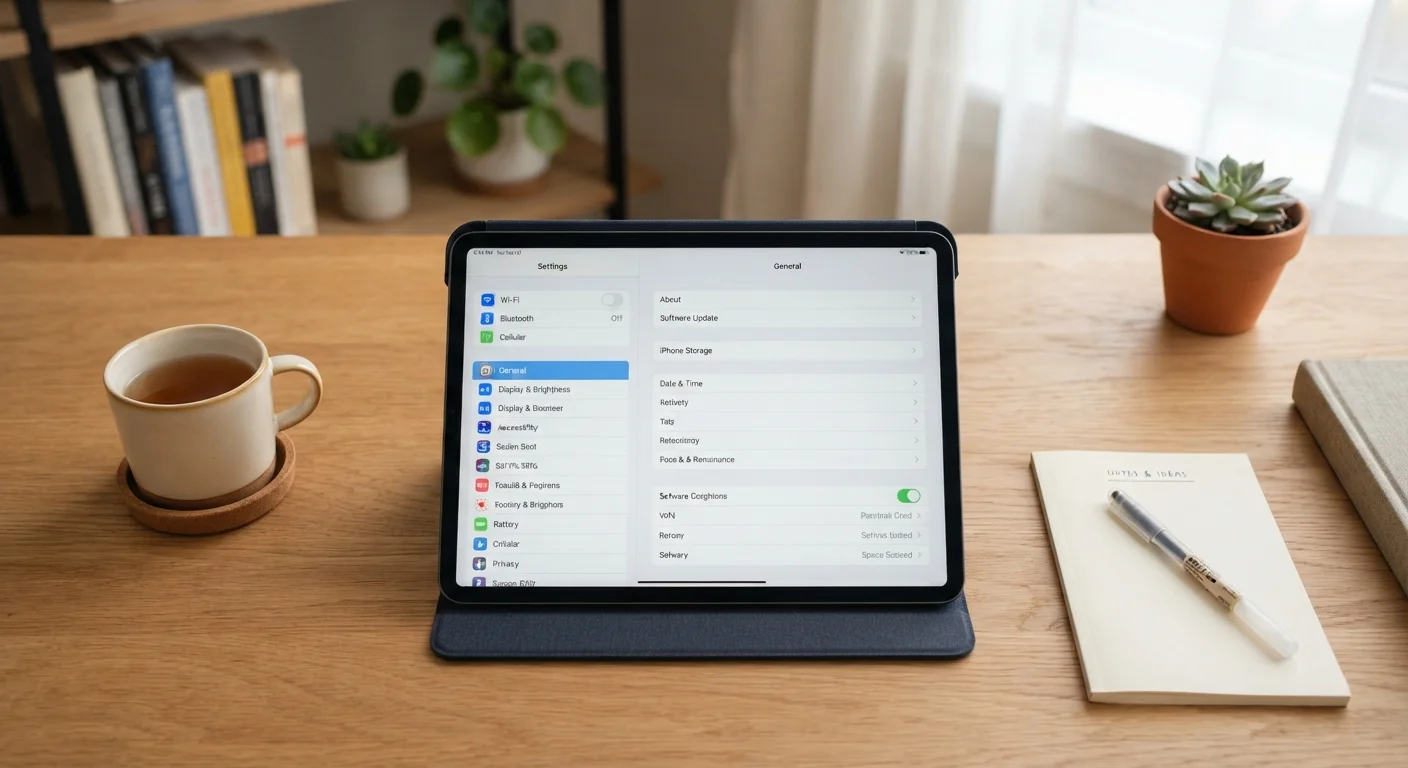
Key Takeaways
- Most tablets come with built-in settings that improve comfort, usability, and privacy — but stay hidden by default.
- Simple adjustments like split-screen, text size, and Do Not Disturb can meaningfully change your daily experience.
- You don't need technical knowledge to find and use these features — just knowing where to look is enough.
- Several settings can also protect your privacy and make your device safer without extra apps or cost.
Your Tablet Already Has These Features — You Just Haven't Found Them Yet
Tablets are remarkably capable devices, yet most people use a fraction of what's built in. That's not a criticism — manufacturers rarely highlight these settings, and the default experience is deliberately simple. But spending just a few minutes in your Settings app can genuinely change how useful your tablet feels every day.
Whether you use your tablet for reading, video calls, streaming, or light work, the adjustments below apply to common scenarios without requiring any downloads, subscriptions, or technical skill. They work on both Android tablets and iPads, though the exact steps differ slightly by device.
Settings Names Vary by Device
The exact names and locations of these settings differ depending on your tablet's brand, operating system, and software version. If you can't find a setting where described, try searching its name in your device's Settings search bar — most tablets have a built-in search function at the top of the Settings screen. Your device manufacturer's support website is also a reliable reference.
If you're also thinking about your device's broader security, our article on keeping your personal devices secure covers practical habits that complement the settings below.
Split-Screen Multitasking
Most mid-range and higher-end tablets support running two apps side by side — a feature many owners never discover. On Android tablets, look for the Recent Apps button (the square icon), tap the app icon at the top of a card, and select Split screen. On iPads, drag an app from the Dock to the side of the screen to activate Split View.
This is especially handy for comparing information — reading a recipe while keeping a shopping list open, or watching a video while taking notes. It turns a leisure device into a genuinely productive tool without any downloads.
Running two apps side by side can turn your tablet from a leisure device into a productivity tool.
Display and Text Size Adjustments
Squinting at small text or holding your tablet uncomfortably close is not inevitable. Under Settings > Display (Android) or Settings > Accessibility > Display & Text Size (iPad), you can increase font size, bold text, and even change the overall display zoom so interface elements appear larger.
These aren't just accessibility features — they make the tablet more comfortable for everyone, particularly in low light or over long reading sessions. A larger, bolder interface reduces eye strain and makes navigation faster.
Adjusting display size isn't just for accessibility — it makes daily use more comfortable for everyone.
Do Not Disturb Scheduling
Do Not Disturb (DND) silences notifications and alerts — but most people only turn it on manually when they remember. The real power is in scheduling it automatically. Go to Settings > Notifications > Do Not Disturb on Android, or Settings > Focus on iPad, and set it to activate during sleep hours, meals, or any routine quiet period.
You can also allow calls from specific contacts (like family) to break through while everything else stays silent. This means fewer interruptions without worrying you'll miss something genuinely important.
Scheduling Do Not Disturb automatically protects your quiet time without any manual effort each day.
App Permission Controls
Many apps quietly request access to your camera, microphone, contacts, or location — often more than they actually need. On both Android and iPad, go to Settings > Privacy (or Settings > Apps on Android) to review what each app can access and revoke anything that seems unnecessary.
For instance, a flashlight app has no reasonable need for your microphone. Stripping back these permissions improves your privacy with zero impact on daily use. If you want a deeper audit of your privacy habits, our guide on running a privacy settings audit walks through the process step by step.
Many apps hold permissions they don't need — revoking them protects your privacy immediately.
Reading or Night Mode
Most tablets include a Reading Mode or Night Mode (sometimes called Eye Comfort or True Tone) that reduces blue light emission during evening use. On Android, look under Settings > Display > Eye Comfort Shield or similar. On iPad, it's under Settings > Display & Brightness > Night Shift.
You can schedule it to activate automatically at sunset. Reducing blue light in the evening is generally considered helpful for winding down, though individual results vary. It also gives the screen a warmer, less harsh appearance — which many people find simply more pleasant to read on.
Scheduling Night Mode to activate at sunset takes one minute and makes evening reading noticeably more comfortable.
Guest or Restricted Mode
If you ever hand your tablet to a child, a guest, or a repair technician, you don't have to give them full access to everything on your device. Android tablets offer a Guest Mode accessible from the Quick Settings panel by tapping your profile icon. iPads offer Guided Access under Settings > Accessibility, which locks the device to a single app.
For parents setting up a device for younger children, these controls pair well with more comprehensive setup steps — see our guide on setting up a child's first device for a fuller picture.
Guest Mode lets someone use your tablet without accessing your personal apps, files, or accounts.
Battery Saver and Adaptive Charging
Under Settings > Battery, most tablets offer a Battery Saver or Low Power Mode that extends runtime by reducing background activity, screen brightness, and refresh rate. You can set it to activate automatically at a certain battery percentage rather than waiting until you're nearly out of power.
Some devices also offer Adaptive Charging or Optimized Battery Charging, which slows the final phase of charging overnight to reduce long-term battery wear. Turning this on is a small step that can meaningfully extend how long your tablet holds a charge over months and years.
Enabling adaptive charging overnight can meaningfully slow battery degradation over the lifetime of your tablet.
Small Changes, Real Difference
None of these settings require technical expertise — just a few minutes of exploration. The payoff is a tablet that fits your life more precisely: quieter when you need quiet, easier to read, more protective of your personal information, and better at lasting through the day.
If you ever lend your device, hand it to a child, or consider passing it on, understanding these controls also helps you do so safely. And if you want to go further with app-level privacy, our piece on keeping personal information safer in everyday apps is a natural next step.
Take Five Minutes to Explore Settings
Set a timer for five minutes and open your tablet's Settings app. Use the built-in search bar to look up terms like 'split screen,' 'night mode,' or 'battery saver.' You don't need to change everything at once — even activating one or two of these features can noticeably improve your daily experience.