

Key Takeaways
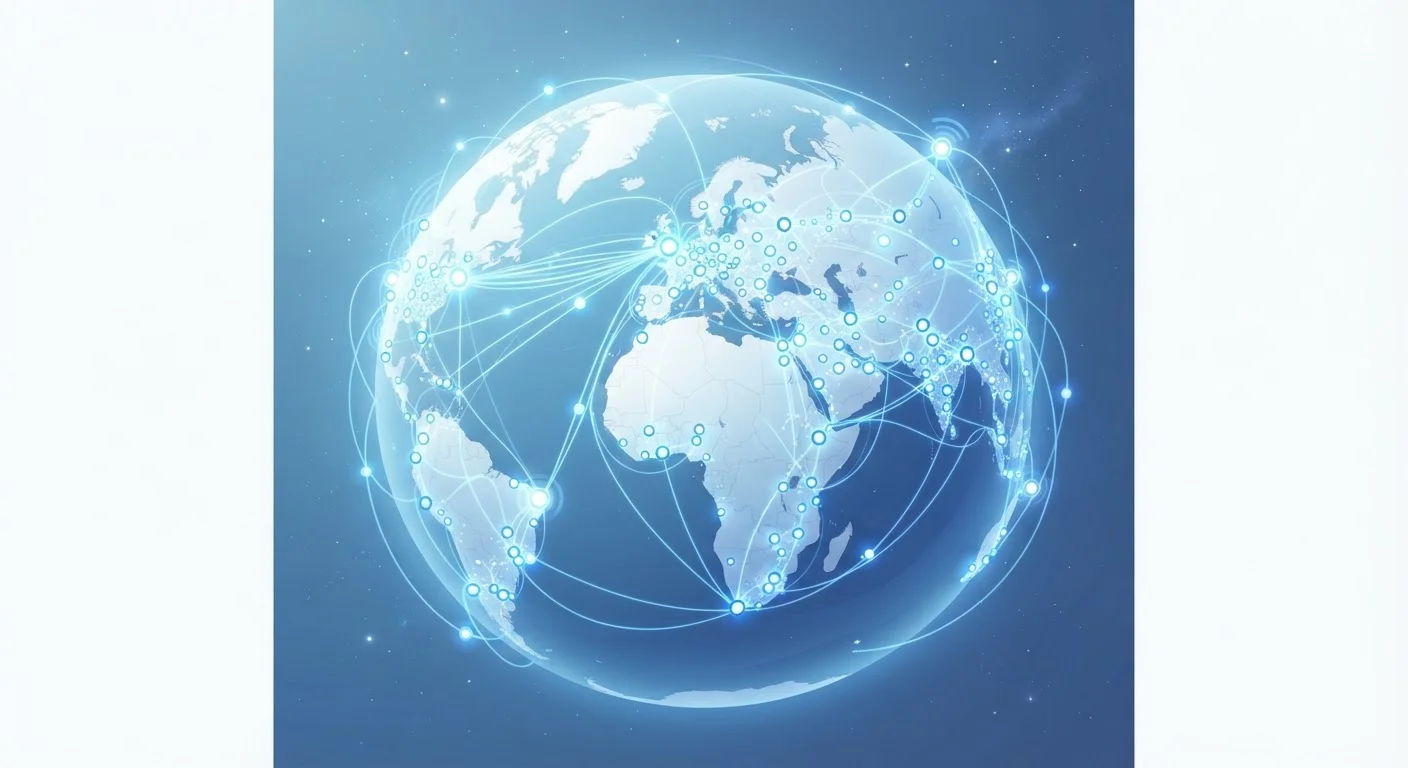
- The internet is a massive global network of computers and devices connected by cables and wireless signals.
- Data travels in small packets, reassembled instantly at your device to form what you see on screen.
- Browsers are apps that translate web code into readable pages — they are not the internet itself.
- Understanding these basics helps you browse more confidently and spot potential online risks.
Start here
What the Internet Actually Is
Next
How Information Travels
Then
Browsers, Websites, and Apps Explained
Finally
Staying Safe as You Explore
What the Internet Actually Is
Think of the internet as the world's largest postal system — except instead of letters and packages, it carries digital information, and instead of roads, it uses an enormous web of cables, fiber-optic lines, and wireless signals. Millions of devices — computers, phones, smart TVs, and more — are all connected to this network simultaneously.
At the heart of it all are servers: powerful computers permanently connected to the internet that store websites, videos, and other data. When you open a webpage, your device is really just sending a request to one of these servers, which then sends the information back to you.
Internet
A worldwide network of computers and devices connected together so they can share information with each other.
Server
A computer that stores data — like websites or emails — and sends it to other devices when requested.
ISP (Internet Service Provider)
A company that provides your home or phone with access to the internet, similar to how a utility company supplies electricity.
IP Address
A unique number assigned to every device on the internet, working like a home address so data gets delivered to the right place.
DNS (Domain Name System)
A system that converts human-readable web addresses like www.example.com into the numerical IP addresses computers actually use.
Packet
A small chunk of data. Large files are broken into many packets for efficient travel across the internet, then reassembled at their destination.
Browser
A program (such as Chrome, Safari, or Firefox) that retrieves and displays web pages from the internet.
HTTPS
A secure version of the web connection protocol, indicated by a padlock icon, meaning data between you and the site is encrypted.
Your device connects to this global network through an Internet Service Provider (ISP) — a company that gives you access to the internet infrastructure, typically through a cable or fiber line coming into your home, or via a cellular signal on your phone. For a deeper look at how this works inside your home, see our guide on home Wi-Fi.
How Information Travels
Every time you load a webpage, send an email, or stream a video, that information is broken into thousands of tiny pieces called packets. Each packet travels independently across the network — sometimes taking entirely different routes — before being reassembled in the correct order on your screen. This happens in fractions of a second.
To make sure packets arrive at the right place, every device on the internet has a unique address called an IP address (short for Internet Protocol address). Think of it like a home address: it tells the network exactly where to deliver your data.
Speed Depends on Distance and Congestion
Just like road traffic, internet speed can vary based on how far your data has to travel and how many other people are using the network at the same time. If your connection feels slow in the evenings, peak usage hours are often the reason — not necessarily a problem with your device.
The system that translates human-friendly web addresses (like www.example.com) into numerical IP addresses is called the DNS, or Domain Name System. It works like a giant phone book, so you never have to memorize a string of numbers to visit your favorite site. Want to understand more of the words you encounter online? Our plain-English glossary of internet terms is a great next stop.
Browsers, Websites, and Apps Explained
A browser is the program you use to access the World Wide Web — examples include Chrome, Safari, Firefox, and Edge. When you type a web address into a browser, it contacts the appropriate server, downloads the page's code, and translates it into the words, images, and videos you actually see. The browser is your window to the web, but it is not the internet itself.
A website is a collection of related pages stored on a server and accessible through a unique web address (called a URL). An app — whether on your phone or computer — works similarly but is a dedicated program designed for a specific service. Many apps use the internet behind the scenes, communicating with servers constantly even when you are not actively typing anything.
The Web and the Internet Are Not the Same
The internet is the underlying infrastructure — the network of cables and connections. The World Wide Web is just one service that runs on it, consisting of websites you visit through a browser. Email, video calls, and online gaming also use the internet but are separate from the Web itself. Knowing this distinction helps make sense of how different digital services relate to each other.
Understanding this distinction matters because different tools offer different levels of control and visibility. Browsers, for instance, typically show you the full web address and whether a connection is secure — useful clues when you are deciding whether to trust a site.
Staying Safe as You Explore
Once you understand that the internet is simply a network of computers exchanging information, online safety begins to make more intuitive sense. When you visit a website, look for https:// at the start of the address — the "s" stands for secure, meaning the data exchanged between you and that server is encrypted and harder for others to intercept.
Be cautious about links that arrive unexpectedly in emails or text messages. Criminals sometimes craft messages that look legitimate in order to trick you into handing over passwords or personal details — a technique known as phishing. If something feels off, go directly to the official website by typing the address yourself rather than clicking the link.
Watch Out for Phishing Attempts
Phishing messages are designed to look like they come from trusted sources — banks, delivery companies, or tech platforms. They often create a sense of urgency to push you into clicking a link quickly. If you receive an unexpected message asking for personal information or login credentials, pause before acting and verify through the organization's official website directly.
Building even a basic understanding of these fundamentals gives you real power. You can find a comprehensive, beginner-friendly roadmap in our article on online safety for everyday users, and browse more privacy topics in our Privacy & Safety hub.
Plain-English Glossary of Internet Terms
A beginner-friendly reference covering common internet jargon — from bandwidth and cookies to VPNs — explained in clear, everyday language.
Online Safety from End to End
A comprehensive guide covering passwords, phishing, and data privacy for non-technical everyday users who want to browse more securely.
The Everyday Person's Complete Guide to Home Wi-Fi
Covers routers, signal strength, dead zones, and Wi-Fi passwords — everything a household needs to understand their home network.