

Key Takeaways
- Pairing and connecting are two different steps — pairing happens once, connecting happens every time.
- Most Bluetooth problems are solved by toggling Bluetooth off and on or clearing old device memory.
- A device can only pair with a limited number of other devices before it starts forgetting older ones.
- Putting a device in 'pairing mode' makes it visible to others — it's not always on by default.
- Bluetooth range is typically around 30 feet, and walls or interference can reduce it further.
Bluetooth Pairing
Bluetooth pairing is the process by which two wireless devices — like a phone and a pair of earbuds — introduce themselves to each other and agree to communicate. Once paired, they remember each other and can reconnect automatically in the future. Think of it like exchanging contact cards: you only have to do the formal introduction once.
Pairing uses a short-range radio frequency (2.4 GHz) and a handshake protocol to create an encrypted link. The shared key generated during this process is stored on both devices.
Pairing vs. Connecting: A Crucial Difference
Many people use "pairing" and "connecting" interchangeably, but they mean two different things — and understanding that difference explains a lot of frustrating Bluetooth moments.
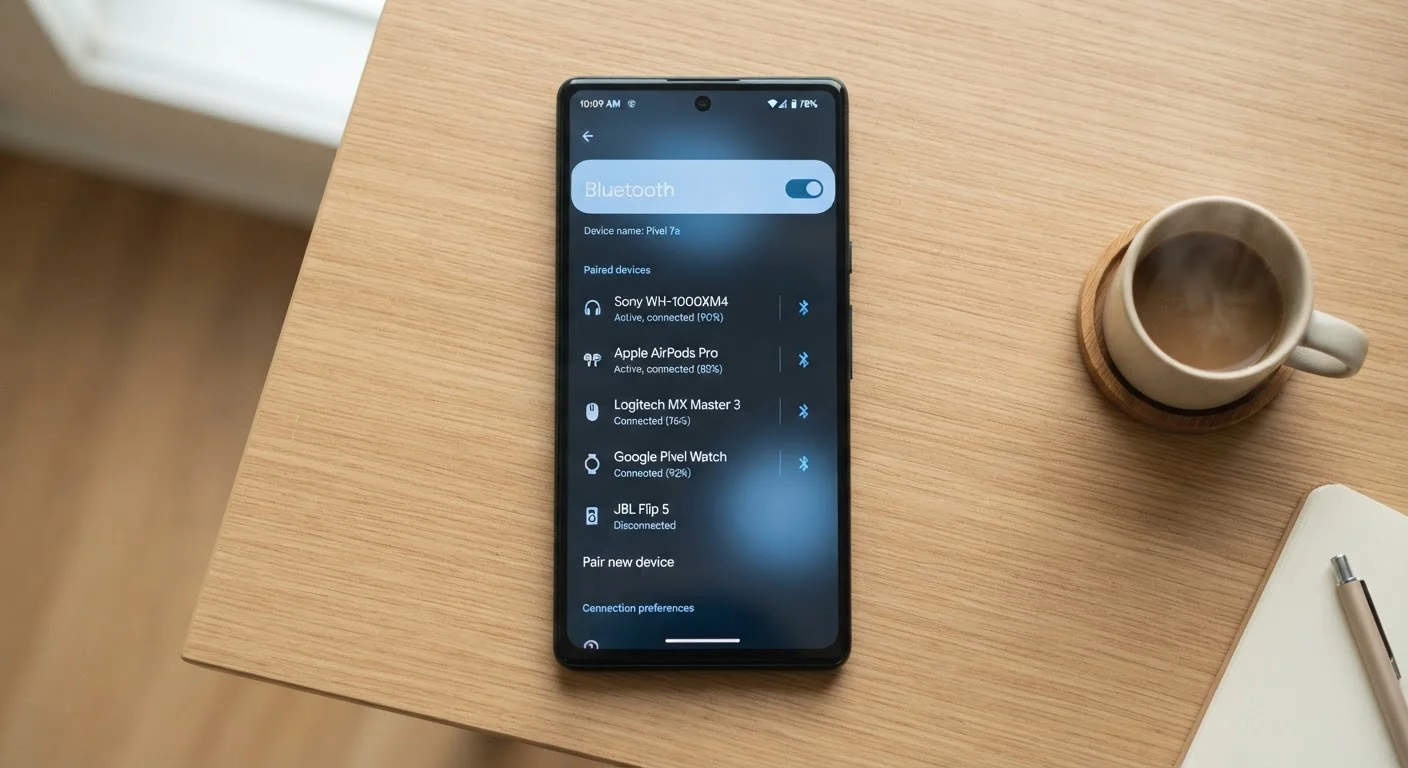
Pairing is the one-time introduction. Your phone and your headphones swap identification information and agree to trust each other. This is stored in memory on both devices.
Connecting is what happens every time you actually use them together. After pairing, devices can reconnect automatically — as long as both have Bluetooth turned on and are within range.
So when your earbuds "won't connect," the pairing is often still intact. Something is simply interrupting the reconnection step: Bluetooth is off, one device is asleep, or another device grabbed the connection first.
Quick Fix: Toggle First, Troubleshoot Second
Before diving into settings, try turning Bluetooth off on your phone, waiting five seconds, then turning it back on. This alone resolves a surprising number of connection issues by prompting devices to renegotiate the connection from scratch.
How Pairing Actually Works (Step by Step)
Here's what happens behind the scenes during a first-time pairing:
- Discovery: One device is put into pairing mode, making it visible to nearby Bluetooth devices. This usually involves holding a button until a light flashes.
- Detection: Your phone scans for nearby devices and displays what it finds.
- Handshake: You select the device, and both gadgets exchange a security key. Some pairings ask you to confirm a matching PIN code — that's normal.
- Memory: Both devices save the pairing. Next time, they skip straight to connecting.
If your device doesn't appear during a scan, it's almost always because it isn't in pairing mode — not because something is broken. Check the manual or look for a blinking light pattern that signals it's ready to be discovered.
If you use wireless earbuds or a smartwatch, pairing is one of the first things you'll set up. Our guide on using a smartwatch for the first time walks through that process in plain terms.
~30 ft
Typical Bluetooth effective range
Standard Bluetooth (Class 2) operates reliably within roughly 30 feet; walls and interference reduce this further.
5–10
Paired devices most gadgets can remember
Once a device's pairing list is full, older entries are automatically removed to make room for new ones.
2.4 GHz
Radio frequency Bluetooth uses
Bluetooth shares the 2.4 GHz band with Wi-Fi and microwave ovens, which can cause occasional interference in busy environments.
Why Bluetooth Sometimes Refuses to Cooperate
Bluetooth issues almost always fall into one of four categories:
- Device memory is full
- Most Bluetooth gadgets can remember only 5–10 paired devices. When the list fills up, the oldest pairings get deleted automatically — sometimes without warning. If your device suddenly doesn't recognise your phone, this may be why. The fix: forget the device on your phone and re-pair fresh.
- Another device grabbed the connection
- Your headphones may have reconnected to your laptop instead of your phone. Check what's connected where, and disconnect from the unintended device.
- Range or interference
- Bluetooth works reliably up to about 30 feet in open space. Walls, microwaves, and crowded Wi-Fi environments can all reduce that range. Move closer and see if the issue resolves.
- Software glitches
- Like any technology, Bluetooth stacks can get into odd states. Toggling Bluetooth off and on — or restarting your phone — clears most of these instantly.
If none of those steps work, our article before you call tech support has a practical checklist that solves most common device problems without waiting on hold.
Factory Reset Clears All Pairings
Many Bluetooth devices have a factory reset option (often a long button hold) that wipes all stored pairings. This is useful if a device has become unresponsive or won't accept new connections. Just be aware you'll need to re-pair it with every device you use it with afterward.
A Note on Sound Quality and Choosing Your Setup
Bluetooth audio quality has improved dramatically over the years, but it still involves compressing sound to transmit wirelessly — something that matters more to some listeners than others. Factors like the Bluetooth codec your devices support (such as AAC or aptX) affect audio fidelity, though for everyday use most people won't notice a difference.
If you're weighing whether wireless is right for you, our piece on wired headphones vs. wireless earbuds covers the trade-offs honestly, including latency, battery life, and comfort.
“Bluetooth was designed to be simple and invisible — most of the time it is. When it isn't, the problem is almost always one of three things: range, memory, or mode.”
— Bluetooth Special Interest Group, Industry standards body overseeing Bluetooth technology
The bottom line: Bluetooth is a reliable, mature technology. Most problems have simple fixes — and once you understand the pairing-vs-connecting distinction, a lot of the confusion disappears on its own.