

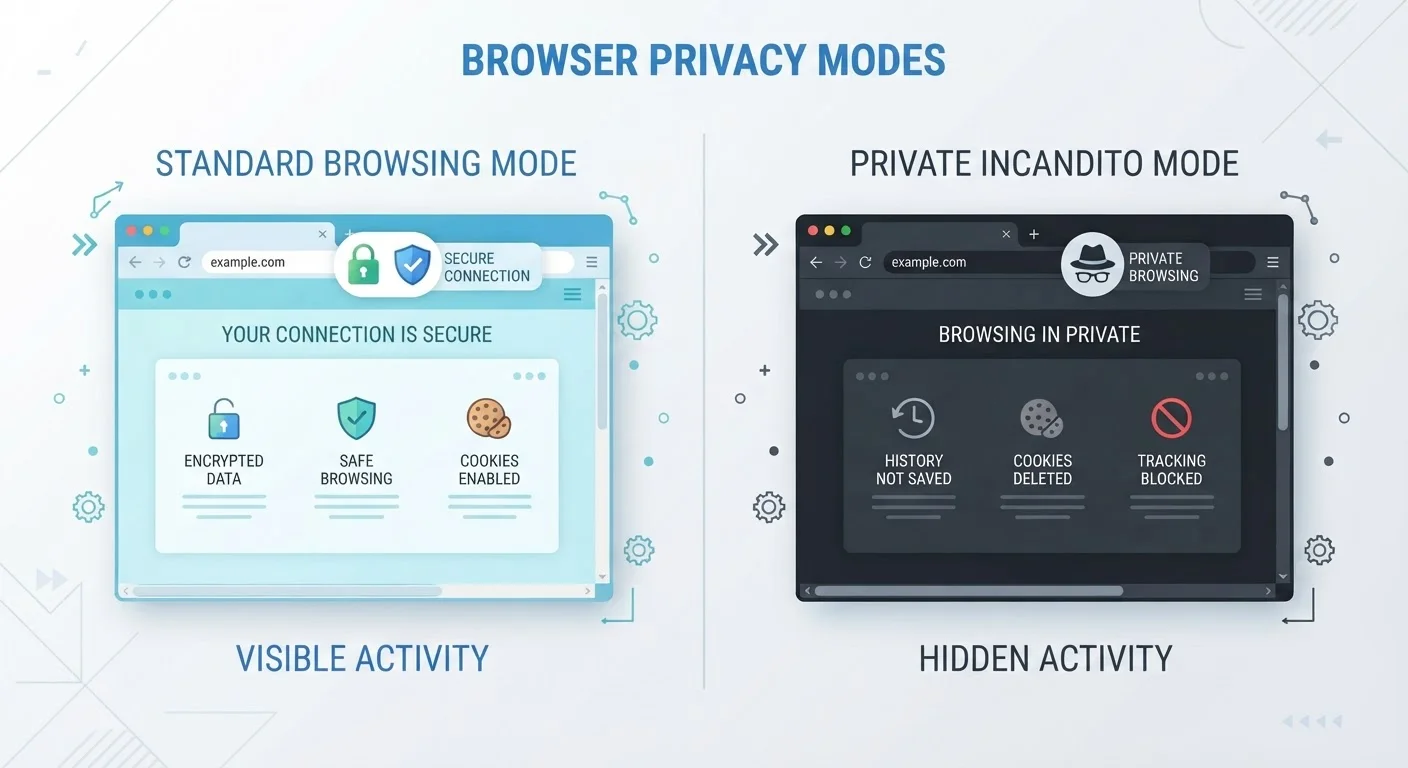
Key Takeaways
- Incognito mode only prevents your browser from saving local history, cookies, and form data.
- Your internet provider, employer, and the websites you visit can still see your activity in incognito mode.
- Browser privacy settings offer deeper, more lasting controls over tracking, data sharing, and permissions.
- Neither option makes you fully anonymous online — both have meaningful limits.
- Using both tools together gives better coverage than relying on either one alone.
Our Verdict
Incognito mode is a quick tool for keeping browsing off your local device — useful for shared computers or sensitive searches you don't want saved locally. Browser privacy settings, by contrast, offer more durable protection by limiting what third parties can collect about you over time. For most people, adjusting privacy settings delivers significantly more real-world protection.
| Best for | Recommended |
|---|---|
| People using shared or public computers | Incognito Mode |
| Those wanting ongoing protection from trackers and data collection | Browser Privacy Settings |
| Anyone seeking the strongest available in-browser privacy | Both Used Together |
What Incognito Mode Actually Does
When you open an incognito or private browsing window, your browser agrees to a simple deal: when the session ends, it won't save your browsing history, cookies, site data, or anything you typed into forms. That's the entire scope of the promise — and it's a local one, limited to your device.
This makes incognito genuinely useful in specific scenarios. If you're using a family computer and don't want your searches showing up in the browser's history, incognito handles that. If you want to browse a shopping site without it remembering your session for retargeted ads on that device, incognito helps there too.
What it does not do is hide your activity from anyone beyond your own browser. Your internet service provider (ISP) can still see the sites you visit. If you're on a work or school network, the network administrator can still log your traffic. The websites themselves still see your IP address — a number that identifies your general location and internet connection. For a deeper look at what gets left behind even in private mode, see our guide to private mode's real limits.
Incognito Doesn't Mean Anonymous
Many people assume incognito mode hides them from the internet — it doesn't. Your IP address is still visible to every site you visit, and your network traffic is still logged by your ISP. If anonymity is your goal, incognito mode alone won't get you there. Tools like a reputable VPN add a separate layer, though they have their own limitations and don't guarantee complete anonymity either.
What Browser Privacy Settings Actually Control
Every major browser — Chrome, Firefox, Safari, Edge — includes a settings menu dedicated to privacy and security. These controls work all the time, not just in a special window, and they address the tracking mechanisms that incognito mode simply ignores.
Key settings typically include:
- Cookie controls: You can block third-party cookies, which are the primary tool advertisers use to follow you across different websites.
- Do Not Track: A signal sent to websites requesting they not track your behavior — though compliance is voluntary.
- Permissions management: Control which sites can access your camera, microphone, or location.
- Safe browsing: Warns you before visiting known phishing or malware sites.
- HTTPS-only mode: Forces encrypted connections wherever possible, reducing the risk of data interception.
These settings don't wipe your history at the end of a session, but they actively limit what data gets collected about you during every browsing session — incognito or not. Understanding your digital footprint can help you decide which settings matter most for your habits.
A Quick Privacy Settings Audit Worth Doing
Open your browser's settings and search for 'Privacy' or 'Security.' Look for options to block third-party cookies, enable HTTPS-only mode, and review which sites have permission to access your location or camera. This one-time review takes about five minutes and benefits every browsing session going forward — not just private ones.
Side-by-Side: How They Compare
The table below breaks down exactly how incognito mode and browser privacy settings stack up against the most common privacy concerns everyday users face.
| Privacy Concern | Incognito Mode | Browser Privacy Settings | |
|---|---|---|---|
| Hides history from others on same device | Yes — session deleted on close | No — history still saved normally | |
| Blocks third-party tracking cookies | Partially — cookies deleted after session | Yes — can block them entirely | |
| Hides activity from your ISP | No | No | |
| Hides activity from websites you visit | No — they still see your IP address | Limited — depends on settings used | |
| Controls site permissions (camera, location) | No | Yes | |
| Applies to regular browsing windows | No — only active in private window | Yes — always on | |
| Effort required to activate | Low — one click | Moderate — one-time setup |
The takeaway is that these two tools target different problems. Incognito is reactive — it cleans up after a session. Privacy settings are proactive — they limit what's collected in the first place.
Which Should You Use — and When?
Think of incognito mode as a shredder for one session's paperwork, and privacy settings as a policy that controls what paperwork gets created at all. Both have a role.
Use incognito when you're on a device that isn't yours, when you want to quickly prevent a website from tying a search to your existing account, or when researching something sensitive that you'd prefer not to appear in autofill suggestions later.
Adjust your browser's privacy settings when you want lasting, everyday protection — especially around third-party tracking. This is worth doing once rather than relying on incognito every time. Privacy settings also apply to your regular browsing window, which is where most people spend the majority of their time online anyway.
It's also worth knowing what you can't control at the browser level alone. If you're logged into a Google account, for instance, your search activity may still be linked to that account regardless of incognito mode. Social platforms track behavior across the web using embedded buttons and pixels — something social media privacy settings can help address separately. For a broader perspective on how your activity is logged across apps and websites, the Internet & Apps hub is a good place to explore further.
This article is for general informational purposes only. Privacy protections vary by browser version, operating system, and jurisdiction. For specific security concerns, consult a qualified cybersecurity professional.